How it works
Schoolhouse rests on one idea: a course is an ordered list of lessons, and everything else (the calendar, the daily list, the records, the reports) follows from checking those lessons off. Here is the whole app, in the order you will meet it.
- The school year
- Courses and lessons
- Scheduling rules
- Today
- Bump, pins, and pace
- Records
- Reports
- Student mode
- Reminders, widgets, Siri
- Sync and backup
The school year
Create a year from a template (traditional, year-round, or four-day week) and Schoolhouse adds the usual holidays; delete the ones you school through and add your own breaks. Terms are optional and let a course run in one term only. The calendar shows the school-day count as you edit, so a 180-day state is checked before the year starts.
Courses and lessons
A course is one curriculum or resource worked through in order: "Math 3 from Math Mammoth", "Story of the World volume 2". Its lessons come from wherever you have them:
- Scan pages. Photograph the table of contents. Several pages are fine. The list that comes back is editable: fix a title, change the minutes, merge a line that split, drag to reorder. On devices with Apple Intelligence, an optional switch asks the on-device model to tidy messy sections; it is never required and never sends anything anywhere.
- Paste. Paste a list from anywhere. Numbered lines, "Lesson 12: Fractions", chapter headings, and section numbers like 1.5 are all understood.
- Import a file. A CSV or spreadsheet with title, minutes, and details columns; a PDF is read like a scan.
- Generate. "Lesson 1 through 160" in one tap for workbooks.
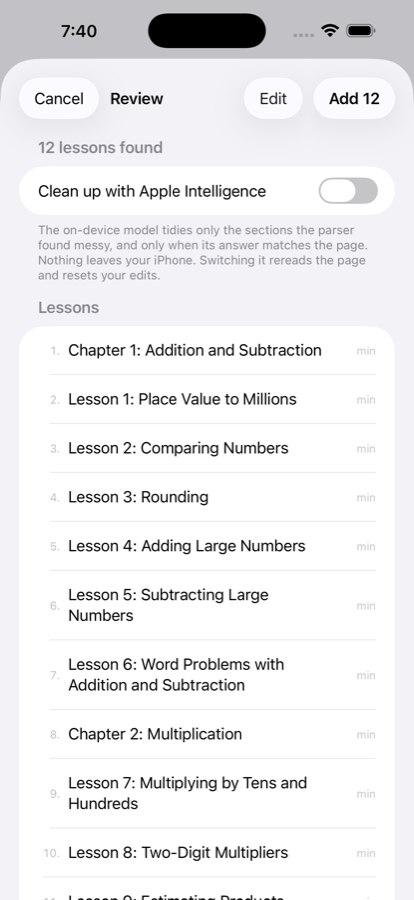
A course can belong to one student or to several. A family course (a read-aloud, family science) is checked off once for everyone; notes and photos stay with the student you opened it from.
Scheduling rules
Pick how the course meets and Schoolhouse lays every lesson on a date:
- Every school day.
- Specific weekdays, such as Monday, Wednesday, Friday.
- N times a week, whichever days, spread out or front-loaded.
- Lessons per day: two a day to finish a workbook early.
- Loop scheduling. No fixed dates: the next item in the list happens the next time the course meets. Ideal for a rotation of art, music, poetry, and handicrafts.
- Term only, or a start date and a target end date.
Changing a rule or a day off regenerates only future dates. Finished lessons never move.
Today
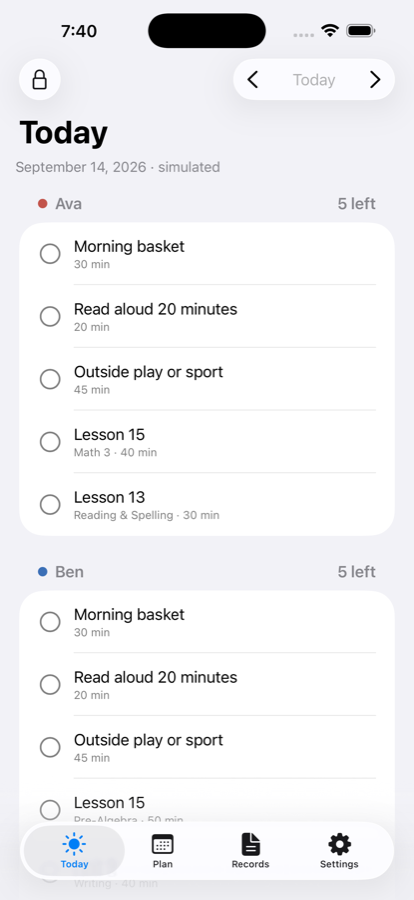
Every school day, open Today and check things off. Tap the circle when a lesson is done. Swipe for Partial (counts the minutes you set and moves the lesson on) or Skip (moves it on and records nothing). Tap a lesson's name to add a note, change the minutes or where it happened, start a timer, or add photos of the work. Routine rows (memory work, read-aloud, piano practice) sit on the same list without a lesson list behind them, and fixed events (co-op, tutors, sports) are pinned to their day and time.
Bump, pins, and pace
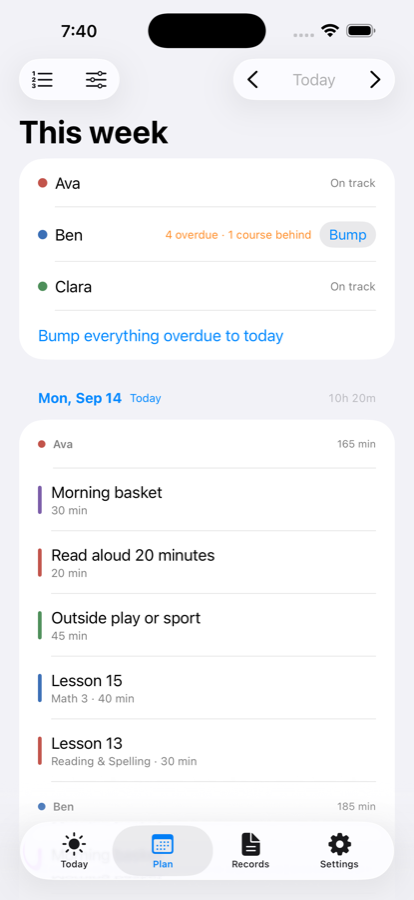
Bump. When a day is missed, bump the course, the student, or everything: every unfinished lesson shifts to the next available days and the rest of the course follows. Finished lessons and pinned lessons never move.
Pins. Drag a lesson to a day when it has to happen then. The course flows around it.
Pace. Each course shows Ahead, On pace, Behind, or Won't finish, and the date it finishes at the current rate. Behind means there is overdue work; Won't finish means the lessons do not fit before the end of the year under the current rule, and the catch-up options show what would (more days a week, two lessons a day, or a later end date).
Pull forward. Optionally per course: finishing tomorrow's lesson today pulls the rest of the course earlier.
Records
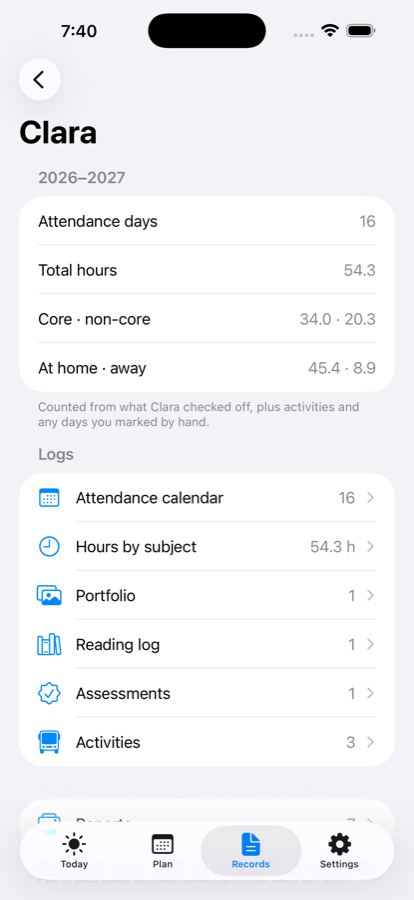
- Attendance. Any day with work checked off is a school day. Mark a day present, half, or absent by hand, flag it as away from home, or require a number of hours for a full day so shorter days count as half.
- Hours. Every checked-off lesson, routine, event, and counted activity adds its minutes to its subject, and to core or non-core, at home or away.
- Portfolio. Photos and notes attached to lessons land here, filed by student and subject; add loose photos or notes any time.
- Reading log. Scan a barcode or type an ISBN to look a book up on Open Library, or enter it by hand; mark it read aloud or independent; finish it when done.
- Assessments and activities. Tests, standardized tests, evaluator visits with scores; field trips, co-op days, volunteer hours for one student or the whole family.
Reports
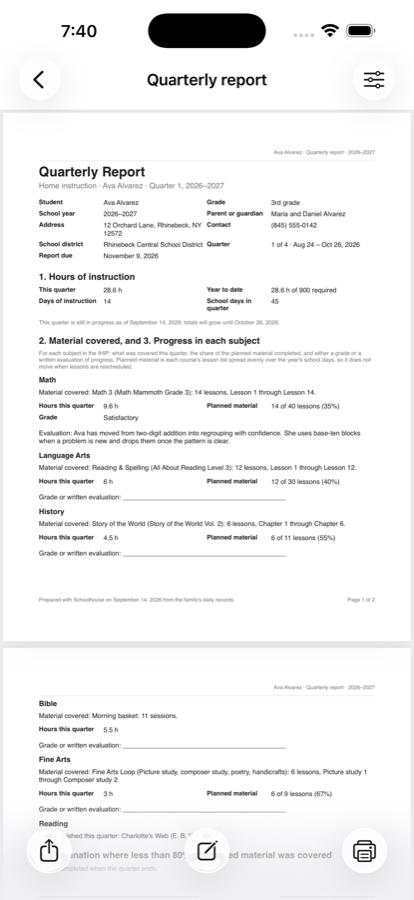
Under each student's records, Reports turns everything into PDFs: attendance with a calendar, hours by subject, the lesson log, the reading list, and a portfolio book work for any state. Then your state's own formats: the New York quarterly report and Individualized Home Instruction Plan, the Pennsylvania evaluator summary, and the Missouri hours log. Choose the school year, a quarter, this month, or last month; add a narrative or grade per subject where the form asks; fill in the parent names, address, district, program, and evaluator once and they print on every report. Share to Mail, Messages, AirDrop, or Files; print to any AirPrint printer; US Letter or A4.
Student mode
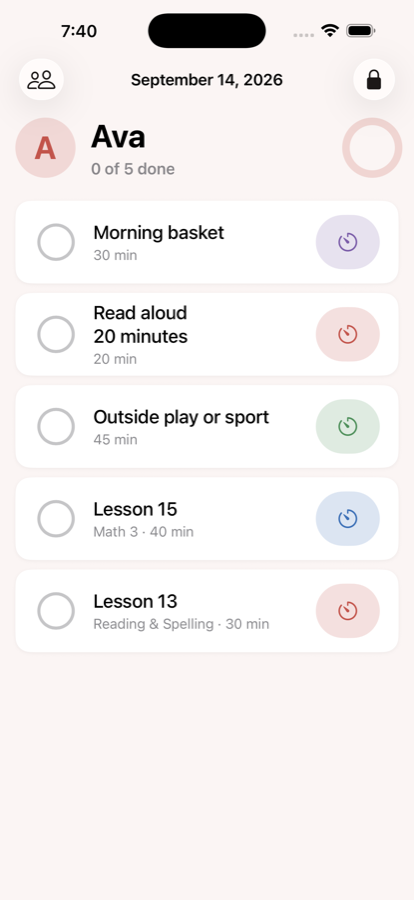
Tap the lock on Today and choose a student. They see only their list for today. Done and undo are theirs; partial and skip stay with you. A timer they run records its minutes when they check off. Siblings switch between their own lists; leaving takes the family PIN or, on a device where the enrolled face is yours, Face ID. When the list is done, a small celebration says so, once a day.
Reminders, widgets, Siri
Turn on a morning summary to get one notification on school days with each student's plan, and a Sunday nudge with what is overdue and which courses are behind. Neither arrives when there is nothing to do. Add the Schoolhouse widget to your Home Screen for every student's progress today or one student's list. Say "Mark Ava's Math 3 done in Schoolhouse" or "What's left for Ben in Schoolhouse"; both also work as Shortcuts actions.
Sync and backup
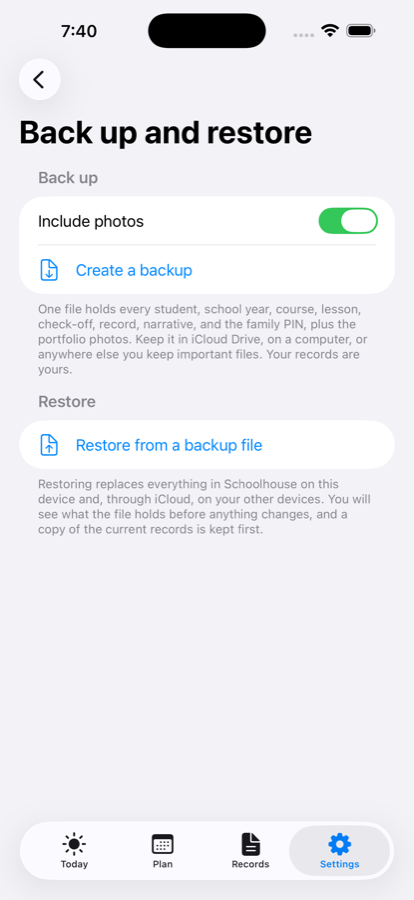
Your records sync through your own iCloud to your other devices; there are no Schoolhouse accounts and no Schoolhouse servers. Settings › Back up and restore writes everything (students, courses, lessons, check-offs, records, narratives, the family PIN, and the photos if you like) into one readable JSON file you keep in iCloud Drive or anywhere else. Restore reads one back and replaces what is on the device, after showing you what the file holds and keeping a safety copy. Backup is free on every plan, forever.
Ready to try it? Getting started walks through the first ten minutes.